How to Build a Good Consent Screen for OAuth and MCP
A consent screen shows the user an application's name, a list of permissions, and two buttons. For a long time, the applications on it were registered by hand, by a logged-in user who was on the hook for what they registered.
MCP changes that. Your users now connect Claude, ChatGPT, Cursor, and whatever ships next month to your product, and with Dynamic Client Registration (DCR) or Client ID Metadata Documents (CIMD), nobody vouched for the client before the request showed up. The consent screen is the only place a person sees the request before it goes through, so it needs to show them enough to make a good call.
This post is a checklist for that screen. Most of it applies to any OAuth consent screen. One section is specific to CIMD, where a client's identity is a URL and its display name is whatever the client says it is. The screenshots are from PropelAuth's consent screen for MCP Authentication, since that's the one we've spent the most time on, but the advice is useful whether you're building your own screen or evaluating someone else's.
What the user is actually deciding
A consent screen looks like one question with two buttons. It's really four questions:
- Which account am I granting access to?
- Who is asking?
- What will they be able to do?
- Where does the result go?
Plenty of consent screens answer the third one and skip the rest. Let's look at how we can address all of them!
Show which account is being used
This is maybe pretty obvious, but you should put the signed-in user's email on the screen, next to the buttons, with a way to log out and switch.
A "Logged in as test@propelauth.com" line with a "Log out" link next to it is all you really need here.
Let the user downselect scopes
An OAuth client asks for the scopes it might need. The person granting access often wants to give less than that, and for AI clients that instinct is a good one. An agent that can read your calendar is useful. An agent that can also delete events is a different level of trust, and the user may not be ready to extend it on the first connection.
So render each requested scope as a checkbox the user can turn off, with a plain-language description of what it allows. Some scopes will be required for the client to work at all. Keep those checked and disabled, and say that they're required. Scopes the user isn't allowed to grant should be visible but disabled, not silently dropped. If they're hidden, the user can't tell that the client asked for something they weren't allowed to approve.
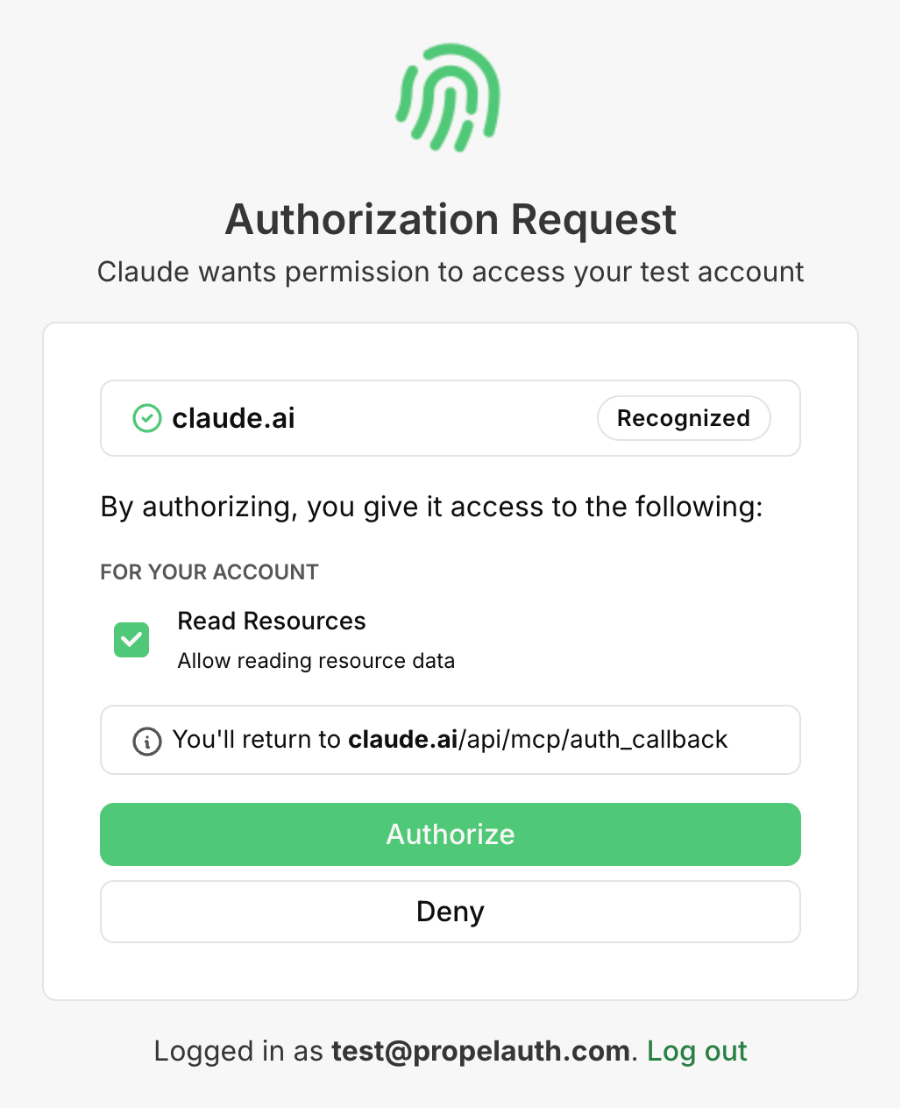
Two things have to be true for the checkboxes to mean anything:
- The token you issue only includes the scopes the user left checked. OAuth allows the server to grant fewer scopes than the client asked for, and the
scopefield in the token response is how the client finds out. - Your MCP server checks scopes on every tool call.
A checkbox on a consent screen doesn't enforce anything on its own. The token and the resource server do.
Show where the user will be sent back to
After the user clicks Authorize, your server redirects them to the client's redirect URI with an authorization code. That URI is where the result of this decision goes, so show it.
The redirect URI is something your server validated against the client's registration, or against the metadata document the client hosts if it's using CIMD. It's the most concrete fact on the screen, and the one a user can compare against what they expect. Someone who pasted an MCP server URL into Claude expects to end up back at claude.ai. If the screen says somewhere else, that's worth a pause.
Warn separately about local redirects
Not every client is a website. Claude Code, Cursor, and most command-line tools run on the user's machine, and their redirect URI points back at it: http://127.0.0.1:52341/, http://localhost:8080/callback, or a custom scheme like cursor://anysphere.cursor-mcp/oauth/callback. The OAuth spec for native apps (RFC 8252) tells authorization servers to accept any port on the loopback address, because the app picks a free port when it starts.
That means the previous section's advice doesn't quite work here. "You'll return to localhost:8080" isn't a destination the user recognizes. It's an app on their computer, and there's nothing to compare it against.
Tell the user what a local redirect is and what would have to be true for it to go wrong. Something malicious would have to already be running on their machine and listening on that port, which is a higher bar than a phishing link. So this is a caution, not an alarm. But the user is still deciding something specific: did I start this? A person who ran a command in Claude Code thirty seconds ago should approve. A person who arrived from a link in an email should not.
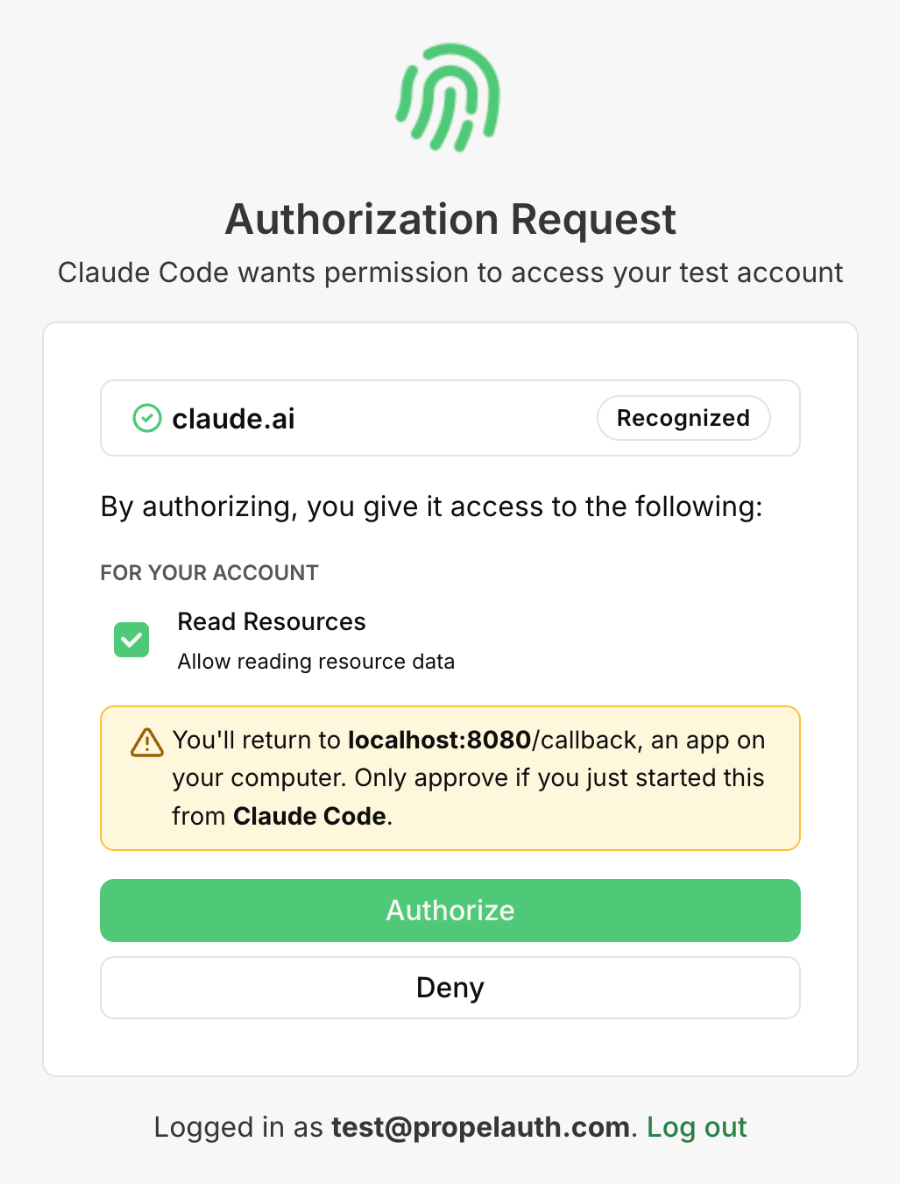
The warning names the client as well as the port, so the user can match it against the application they were using a moment ago.
Advice that matters for CIMD
Everything above applies to clients that were registered by hand or through DCR. CIMD adds one more thing to think about, and it's the one I'd expect to be exploited first.
With CIMD, the client_id is a URL. The client hosts a JSON document at that URL with its client_name, redirect_uris, and the rest of what registration used to capture, and your authorization server fetches it when the authorization request arrives. The MCP spec now recommends this over DCR, and it's a real improvement, because whoever published the document had to be able to write to that URL. On claude.ai, that means Anthropic.
But notice what that does and doesn't prove. It proves the publisher controls that URL, which on a shared host means much less than controlling a domain. And it says nothing about the client_name inside the document, which is free text. Anyone can host a document at https://claude-connector.example/metadata.json with "client_name": "Claude", and if your consent screen leads with the name, it will look exactly like the real thing.
Treat the name as a claim and the domain as the identity
Lead with the domain of the client_id URL, and treat the display name as something the client said about itself. When the domain is one you recognize, the name can carry the sentence: "Claude Code wants permission to access your account." When it isn't, the wording should change: "An app calling itself 'Claude Code' wants permission to access your account."
That tells the user the name is unverified without asking them to understand what CIMD is.
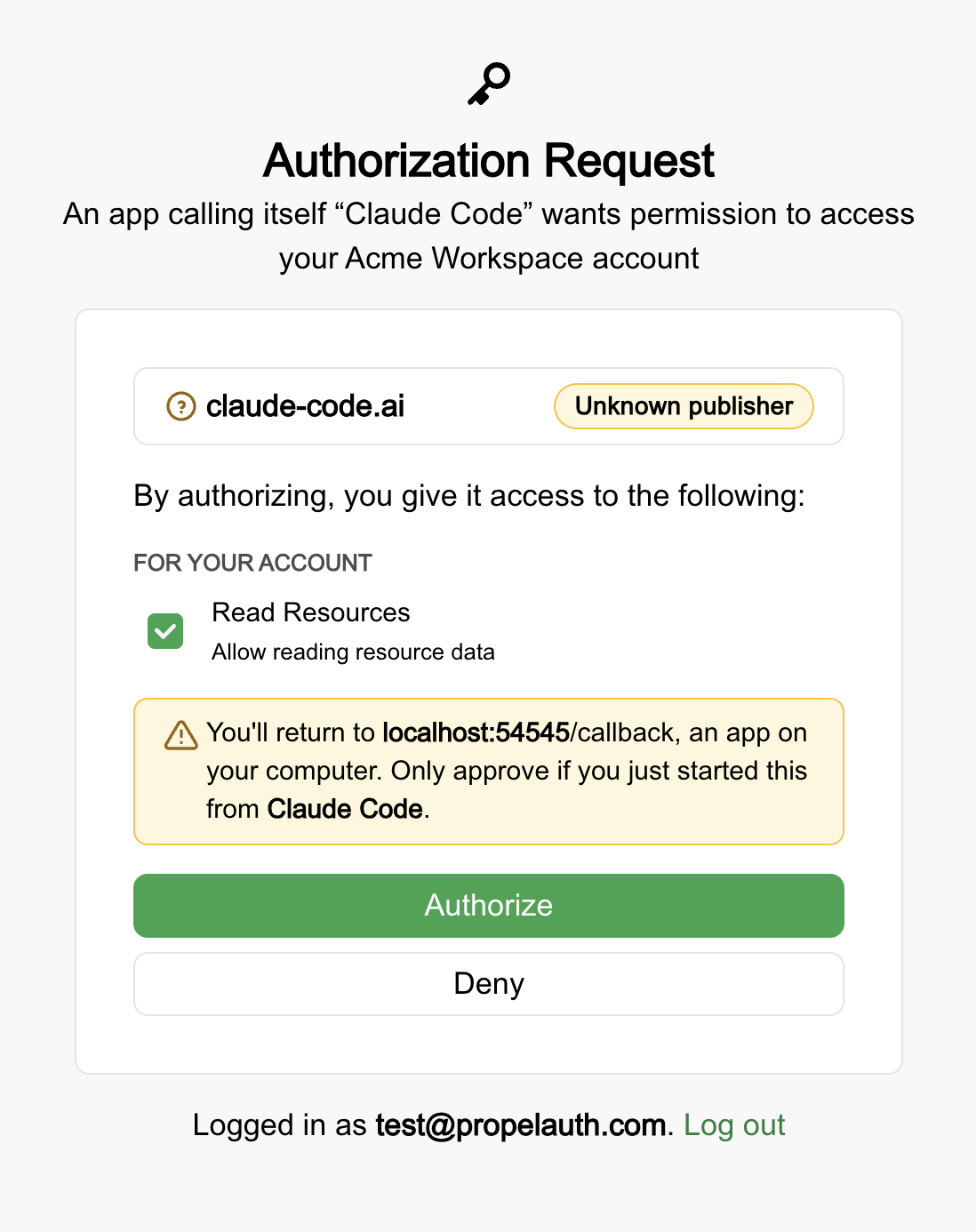
PropelAuth keeps a list of domains that belong to known MCP clients. A CIMD client is marked "Recognized" when its client_id domain is on that list and the metadata document it serves checks out. Anything else gets an "Unknown publisher" badge and the "calling itself" wording. That's what happened in the screenshot above: the client_id pointed at claude-code.ai, which is notably not claude.ai, so the check failed. Unknown isn't the same as malicious. A CIMD client your own team wrote for an internal tool will show as unknown, and that's fine.
What to look for, concretely:
- The name and the domain disagree. A client called "Claude" hosted somewhere other than an Anthropic domain.
- A look-alike domain.
claude-ai.com,c1aude.ai, orclaude.ai.something.example. The last one is the sneaky one. The registrable domain issomething.example, and that's the part your screen should make prominent, not the first label. - The redirect goes somewhere unrelated. A client hosted at one domain that sends the user back to a different one isn't automatically wrong, but it's a reason to look twice.
Don't render a logo you can't vouch for
Metadata documents can include a logo_uri, and it's tempting to show it, because a screen with the Claude logo on it looks more finished than one without. Don't, unless the publisher is recognized. A logo is one of the strongest trust signals on the page, and for an unknown publisher it's an image the requester chose. Putting Anthropic's logo next to "an app calling itself Claude" undoes the work the wording did.
Ask again when a client wants more
A client that was granted read access and later asks for write access should land on the consent screen again, with the new scopes marked so the user can see what changed. Quietly extending a grant because the user approved this client once is the same mistake as skipping the screen. The same goes for a scope whose meaning you've changed since the user approved it.
Bonus: consent screens for B2B products
If your product is organized around companies, the consent decision has one more dimension: which organization. A user who belongs to Acme and also to a second organization in your product isn't granting an AI client access to "their account" in the abstract. They're granting access to Acme's data or to the other organization's data, and the screen should say which.
PropelAuth's consent screen supports this directly. When your MCP server defines organization scopes, the user picks the organization the grant applies to, and the scopes on the screen apply to that organization. The user's role in that organization decides which scopes they can grant. An Admin can grant a scope you've limited to Admins. A Member sees it disabled and can't. That keeps a user from granting a scope their role doesn't allow. The organization scopes post covers how the role gating is configured.
The checklist
- The signed-in user's email is on the screen, with a way to switch accounts.
- Each scope is a checkbox with a description. Optional scopes can be turned off. Required and disallowed scopes are visible and marked.
- The redirect destination is shown, domain first.
- Local redirects get their own wording: an app on your computer, only approve if you started this.
- The client's domain is the identity. The name is a claim, and unknown publishers are labeled as such.
- No logo for unknown publishers.
- Asking for more scopes later means asking for consent again.
- For B2B products, the organization is part of the grant, and the user's role decides what they can grant.
If you're using PropelAuth's MCP Authentication, this is the hosted consent screen you get. If you're building your own, this list is what we'd check it against.