Secure User Impersonation: Access Controls, Audit Logs & More
User impersonation is consistently one of our customers’ favorite features. Your team can select a user in the dashboard, click Impersonate User , and immediately access your product as that user.
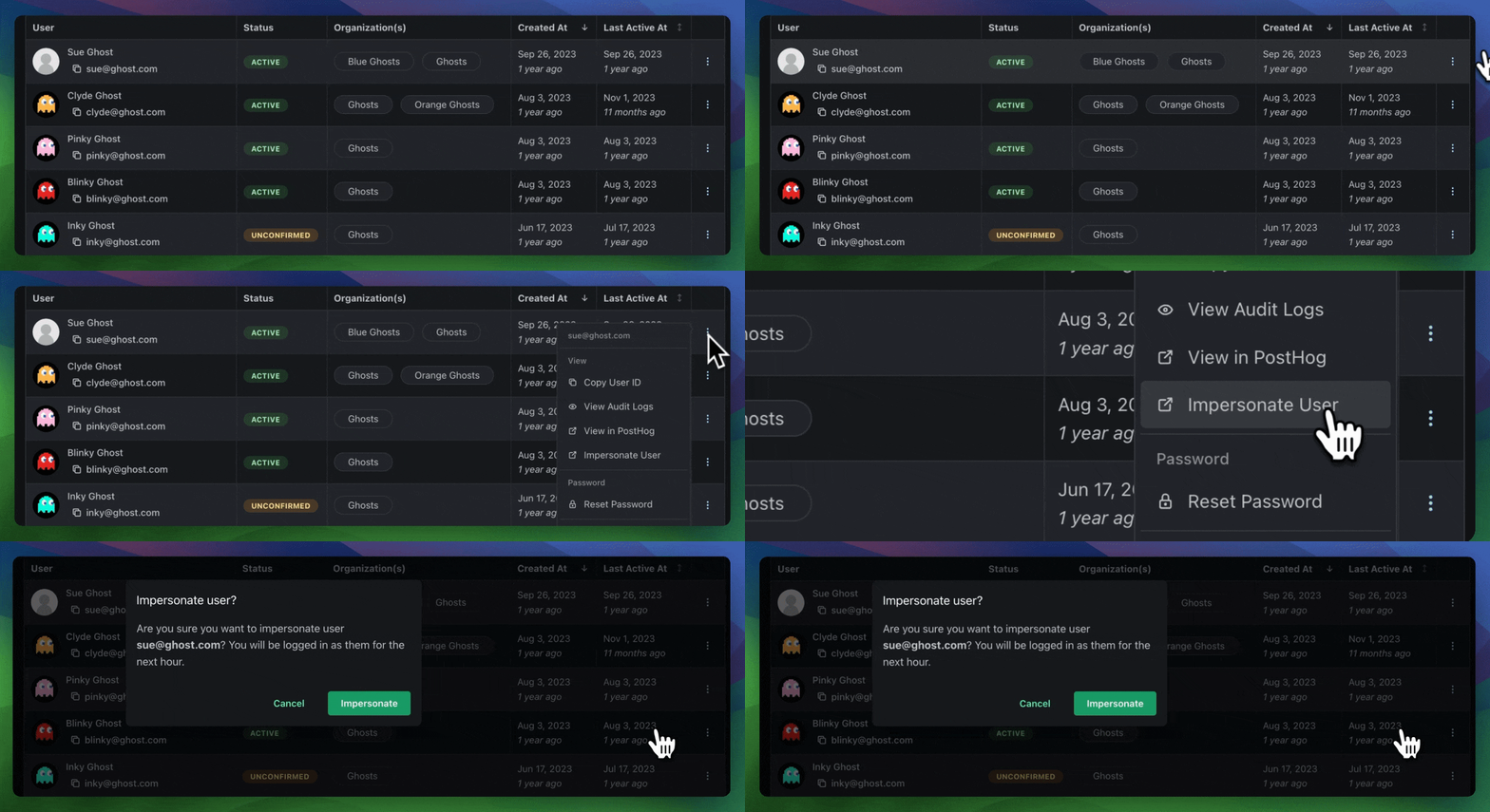
It’s incredibly powerful for debugging customer issues, reproducing unexpected behavior, assisting users, and running realistic sales demos.
But, as the saying goes, with great power comes a lot of compliance questions.
Giving an employee access to another user’s account, even temporarily, is a sensitive action. You need to control who can do it, understand when it happens, and prevent access to accounts that should never be impersonated.
In this post, we’ll walk through the safety and access-control features built into PropelAuth’s user impersonation system, including:
- Employee-level impersonation permissions
- Detailed audit logs and real-time alerts
- Active-session monitoring and revocation
- Approval-based impersonation access
- Organization blocklists and allowlists
User Impersonation Is Off by Default
It should go without saying that impersonation is off by default. Only a user with the Owner role can enable it.
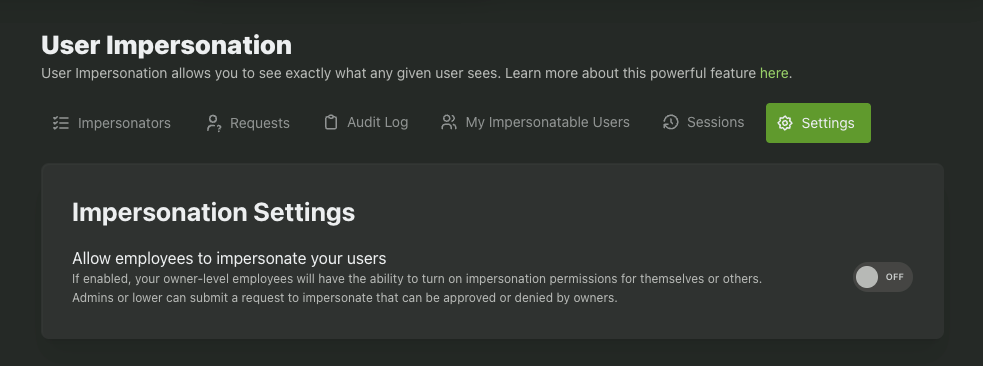
Enabling the feature does not automatically give every employee permission to impersonate users. After impersonation is enabled, an Owner must individually select which employees are allowed to use it.
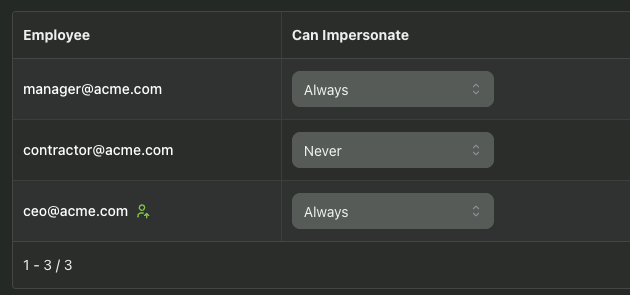
This gives you a straightforward least-privilege model: employees only receive impersonation access when their role requires it.
For example, members of your support or customer success teams may need impersonation access to troubleshoot customer issues, while employees in other departments may have no reason to use it.
Audit Logs, Alerts, and Revoking Sessions
Any sensitive action should come with a clear audit trail.
PropelAuth provides a dedicated audit trail for all impersonation actions, like granting / revoking impersonation permissions and starting to impersonate someone.
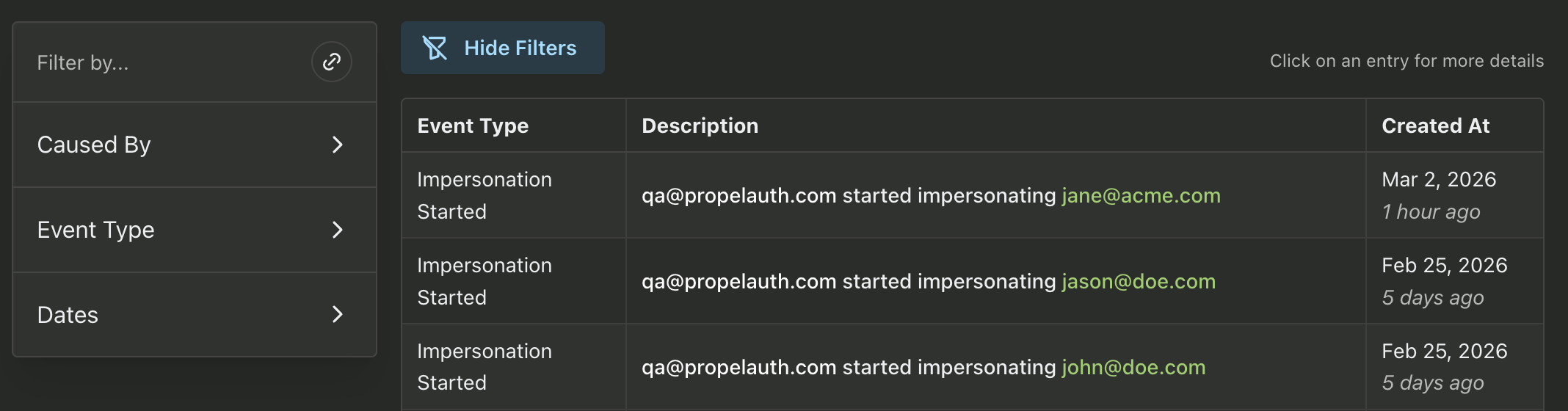
You can filter this audit log by employee, user, or a specific action. This makes it easier to investigate a specific event, review one employee’s activity, or understand every time a particular user was impersonated.
Real-Time Impersonation Alerts
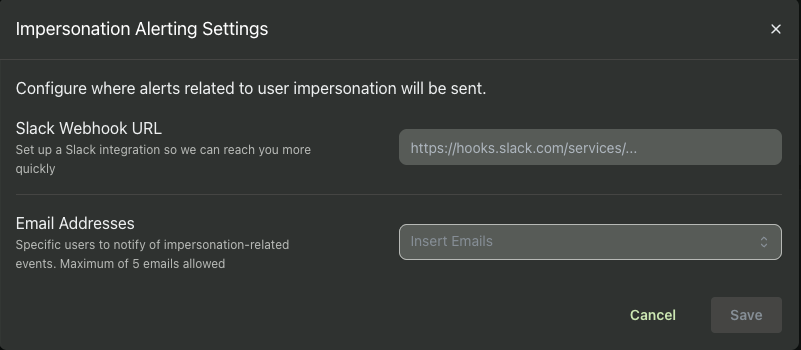
In addition to reviewing the audit log, you can also set up alerts so you get instantly notified (via Email or Slack) when an employee starts impersonating a user.
Viewing and Revoking Active Sessions
PropelAuth also includes a dedicated view for active impersonation sessions.
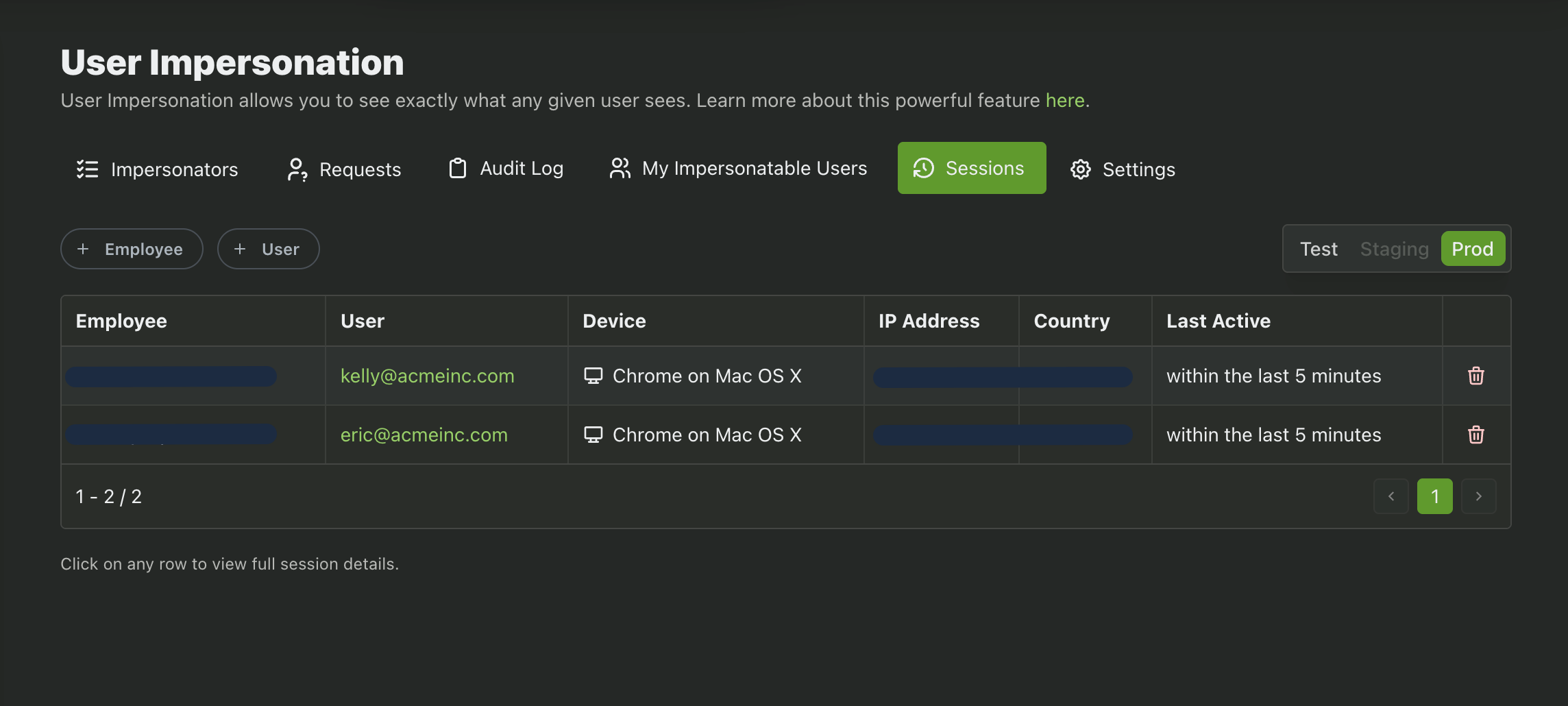
This also can be filtered by employee or user and impersonation sessions can be revoked directly from this table.
Restricting Who Can Be impersonated
Everything we’ve covered so far provides strong oversight and control, but it is mostly reactive. Audit logs, alerts, and session revocation help you understand and respond to impersonation activity after an employee has been given access.
For smaller teams, that may be all you need. You can limit impersonation to a handful of trusted employees, receive an alert whenever it happens, and periodically review the audit log.
As your team and customer base grow, however, you may want more proactive controls. Let’s look at some examples of that.
Require Explicit Approval Before Impersonation
Instead of letting employees immediately impersonate any user, you can require them to request access first.
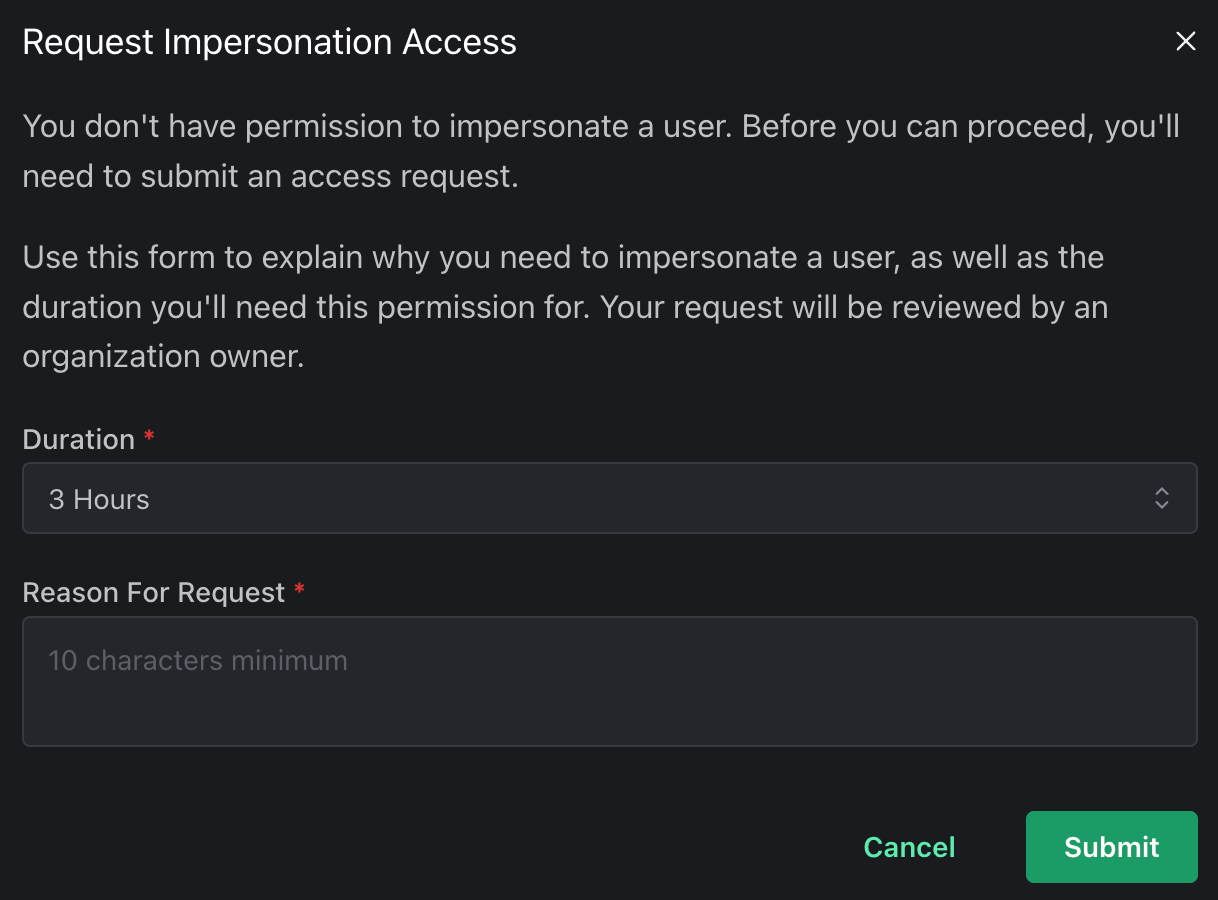
When requesting access, the employee must provide:
- A reason for the request
- The user they need to impersonate
- The length of time for which they need access
For a quick bugfix, they might only need a few hours. For a customer success engineer who will impersonate a customer frequently, they might ask to be able to impersonate over the next month.
Note that the approval window does not determine the length of an individual impersonation session. For security purposes, impersonation sessions are typically one hour long and cannot exceed four hours. Approving access for a month simply means the employee does not need to submit a new request every time they impersonate that user during the approved period.
This gives you both very granular control over which employees can impersonate which users and a detailed audit trail of why they requested it in the first place, and who approved it.
Block an Organization from Being Impersonated
Some customers may not want their accounts to be impersonated under any circumstances.
You could try to document that preference in an internal note, support ticket, or CRM field. However, that approach still relies on employees remembering to check the note before starting an impersonation session.
PropelAuth provides an Impersonation Blocklist so that the restriction can be enforced directly.
The blocklist contains organizations. When an organization is added, no user belonging to that organization can be impersonated.
This gives you a reliable way to honor customer-specific restrictions and prevents accidental access, rather than just documenting that access should be avoided.
Limit Employees to Impersonatable Organizations
A common workflow that we see is customer success/support employees being assigned to a set of organizations. They should have easy access to impersonate the organizations they’ve been assigned to, but no access outside of their assigned portfolio.
This is where Impersonatable Organizations comes in. It allows you to specify a per-employee allowlist of organizations they can impersonate.
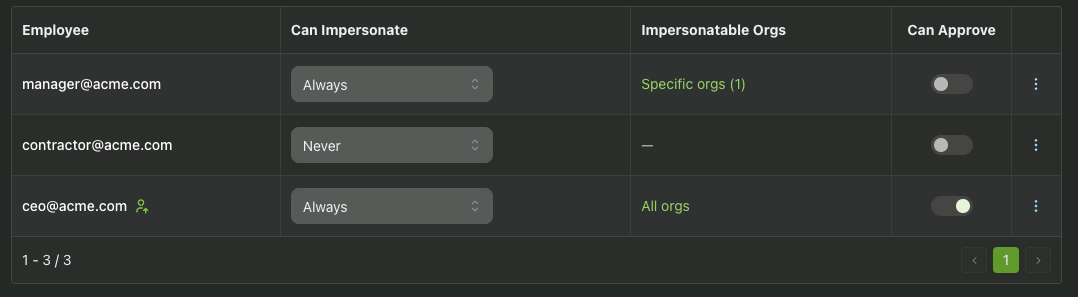
For example, imagine a customer success manager is responsible for five enterprise customers. You can allow that employee to impersonate users within those five organizations while preventing them from impersonating users anywhere else.
This gives employees the access they need to do their jobs without granting broad, project-wide impersonation privileges OR requiring them to get approval for each user added to their organizations.
Developer Tools for User Impersonation
First-Class Concept in our Libraries
Impersonation controls are not limited to the PropelAuth dashboard. Your application can also detect when a request is being made through an impersonation session.
PropelAuth’s frontend and backend libraries provide an indication that the current session is an impersonation session. They also include information about the user being impersonated.
This allows you to customize your application’s behavior during impersonation.
For example, you might:
- Display a visible banner indicating that the employee is impersonating a user
- Disable certain actions or API alls during impersonation
- Add impersonation details to application logs
You can learn more in the PropelAuth documentation for identifying impersonated users.
Link Directly to an Impersonation Workflow
PropelAuth also provides a dashboard endpoint that lets you create a direct link for starting an impersonation workflow:
https://app.propelauth.com/impersonate-user?email=user@example.com&project=your_project&env=prod
The link identifies the user, project, and environment involved, making it faster for an employee to begin the process.
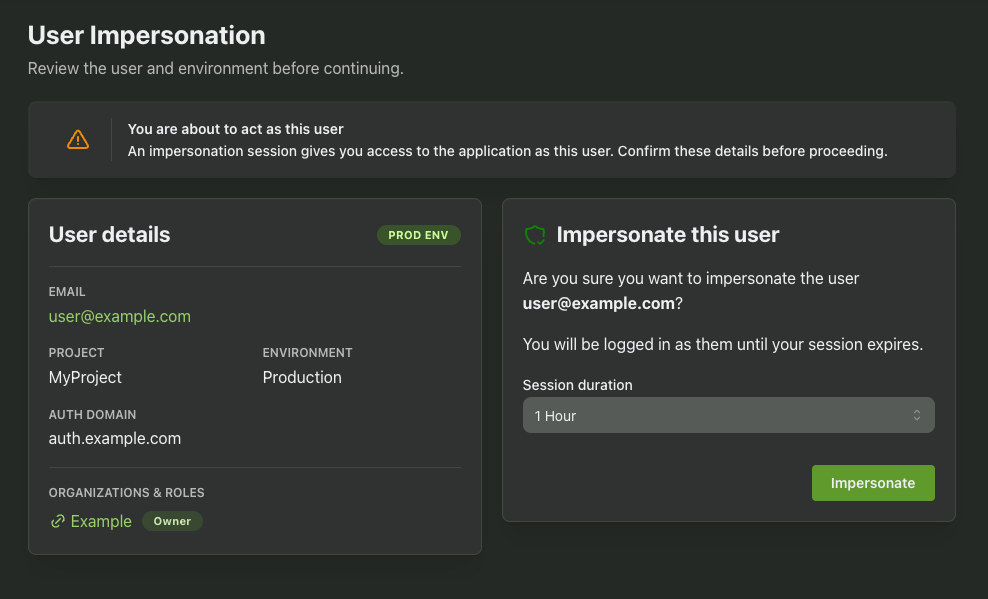
It does not bypass your existing impersonation security controls.
After opening the link, the employee is shown an interstitial page where they can confirm that they are about to impersonate the correct user. If the employee does not currently have permission to impersonate that user, they will still need to request and receive access.
This endpoint is useful anywhere your team already works with customer information. For example, you can generate impersonation links from:
- Slack support notifications
- Internal admin tools
- Customer support tickets
- Incident-management workflows
A support notification in Slack could include a direct link to the relevant user’s impersonation workflow. The employee can open it, confirm the account and environment, and proceed according to your configured approval policies.
This removes the need to manually open the dashboard, locate the correct project, search for the user, and begin the impersonation process from scratch - all while preserving the interstitial confirmation page, permission checks, approval requirements, and audit trail.
Putting It All Together
User impersonation is powerful because it lets your team quickly reproduce bugs, help customers, and run realistic demos. The goal is to keep that speed without giving employees unrestricted access to customer accounts.
PropelAuth lets you start with a simple setup: enable impersonation, grant access only to the employees who need it, and monitor activity through audit logs and alerts.
As your security requirements grow, you can add more control. You can require approval before a user is impersonated, prevent specific organizations from being accessed, limit employees to assigned customer accounts, and revoke active sessions at any time.
Your application can also detect impersonation sessions, allowing you to display warnings, improve logging, or disable especially sensitive actions.
Together, these controls give your team the benefits of user impersonation while keeping access limited, visible, and accountable.